Take a phone order
Point of sale · Updated 23 November 2026 · 1 min read
Enter an order for a buyer who called or messaged.
When a buyer orders by phone, Messenger or WhatsApp, enter it in POS with their delivery address. It becomes a normal order you confirm, ship and deliver.
Enter the order
Go to POS and add the products.
Search the Customer if they've bought before. Their saved addresses then appear.
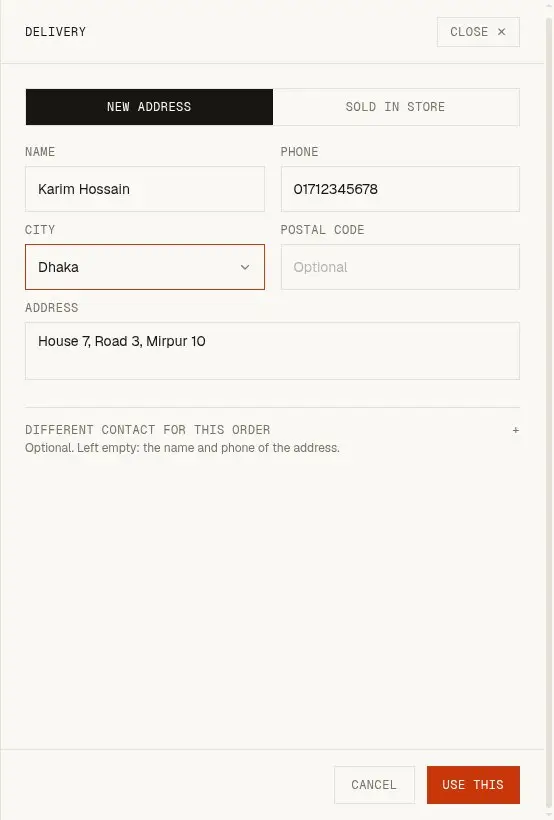
Next to Delivery, select Change. Choose a Saved address or New address, and fill in name, phone, city and address. Select Use this.
The delivery charge is added from your rates for that city.
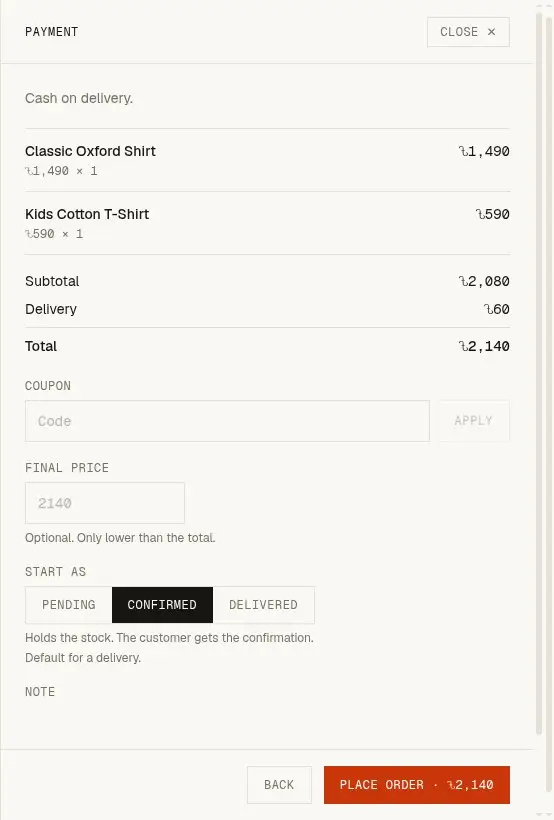
Select Payment & place order. Choose Start as: Pending if you still need to confirm, or Confirmed (the default for a delivery) to hold the stock now.
Add a Note if needed (it's printed on the invoice), then select Place order.
Tip: The order is cash on delivery. If the buyer already paid an advance by bKash or Nagad, open the order afterwards and add it with Record payment.