Add a product with sizes
Products and inventory · Updated 23 November 2026 · 3 min read
Photos, prices, sizes and colours, and how much stock you have of each.
A product has details (name, category, description), images, and one or more variants. Variants are what customers actually buy, and each has its own price, SKU and stock. A t-shirt in sizes S, M and L is one product with three variants.
1. Create the product
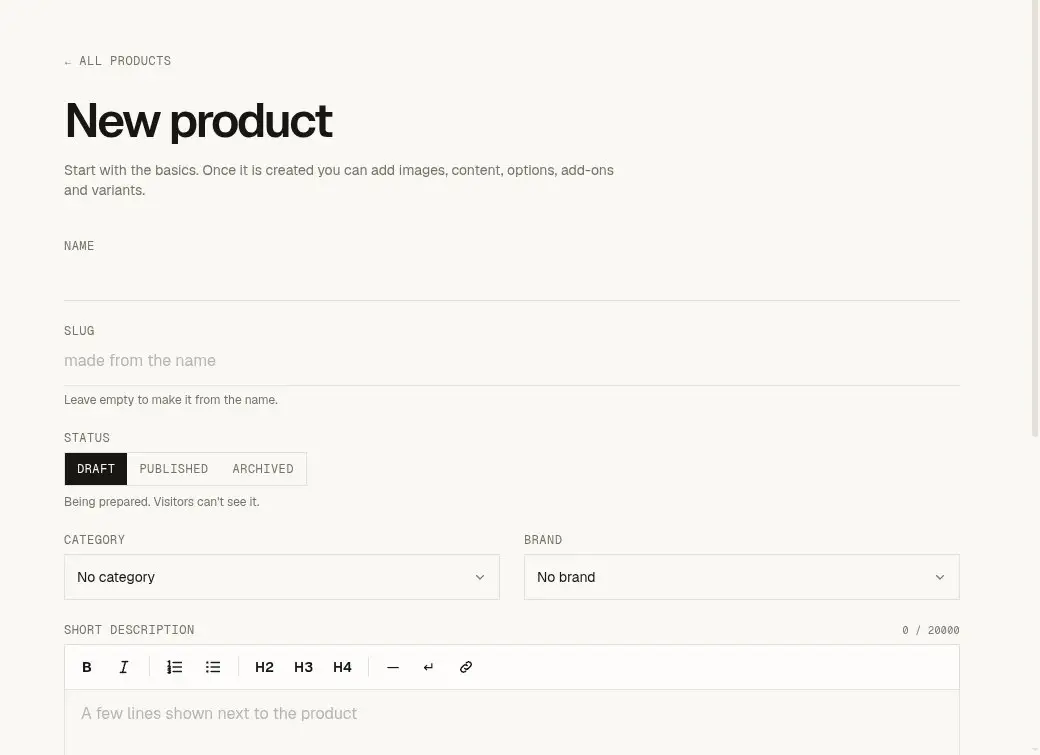
Go to Products › Create.
Type the Name. The Slug (the product's web address) is made from it.
Choose a Category and Brand if you have them, and write a Short description.
Leave Status on Draft while you set it up. Save to create the product.
2. Add images
Open the Images tab and select Add images.
Pick pictures from your media library or upload new ones. The first image is the main picture. Drag to reorder.
Select Save images.
3. Add sizes and colours (options)
Skip this step if the product comes in only one version. It then has one default variant.
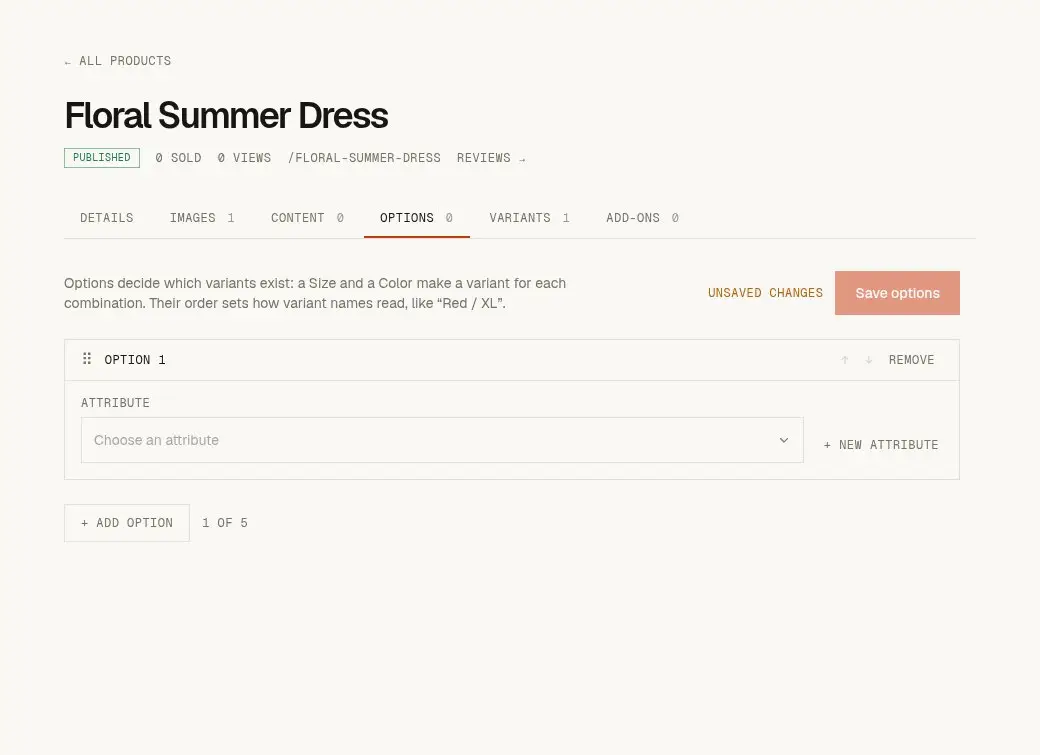
Open the Options tab and select + Add option.
Choose an Attribute, such as Size or Color. If it doesn't exist yet, select + New attribute.
Pick the values you sell, for example S, M, L and XL.
Add a second option if you need one (like Color), then select Save options.
4. Make the variants and set prices and stock
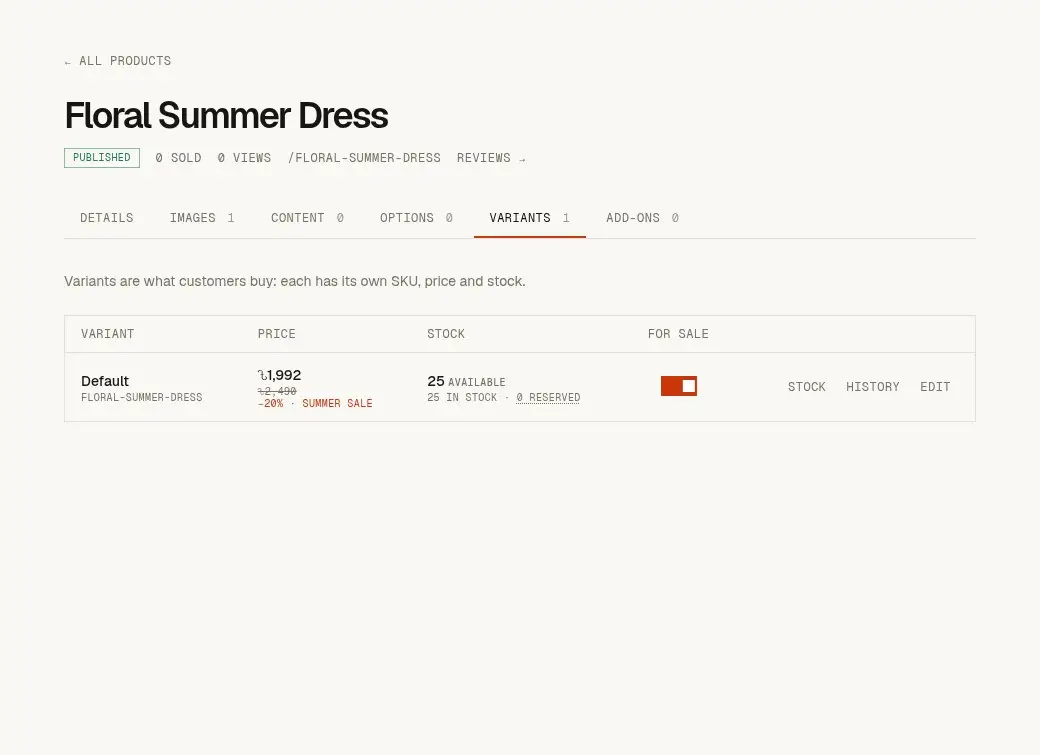
Open the Variants tab and select Generate variants. A variant is made for every combination, like "Red / XL".
In the box, set the Price for them (and a Compare-at price if you want a crossed-out "was" price), then generate. You can change one variant's price later with Edit.
New variants start switched off with no stock. Select Stock next to each one and add what you have with the reason Restock.
Turn on For sale for each variant you want to sell, or select Switch all on.
5. Publish
Go back to Details, set Status to Published and save. The product now shows in your store.
Tip: Use the Content tab to add a longer description with pictures, videos and tables, and Add-ons for extras like gift wrap or engraving text.
Common questions
Why can't customers buy my product?
Check three things: the product's status is Published, at least one variant has For sale on, and that variant has stock.
How do I change stock later?
Use Adjust stock, so every change is logged. See Adjust stock and see the log.
What is Cost?
What the item costs you. It is used for profit in reports, and only people allowed to see cost prices can see it.