Adjust stock and see the log
Products and inventory · Updated 23 November 2026 · 1 min read
Correct stock counts and see every change, who made it and when.
Every stock change goes through Adjust stock with a reason, so you can always see why a number changed. Sales and returns from orders are logged automatically.
Adjust stock
Go to Products › Inventory and find the variant (search by SKU or product name).
Select Adjust.
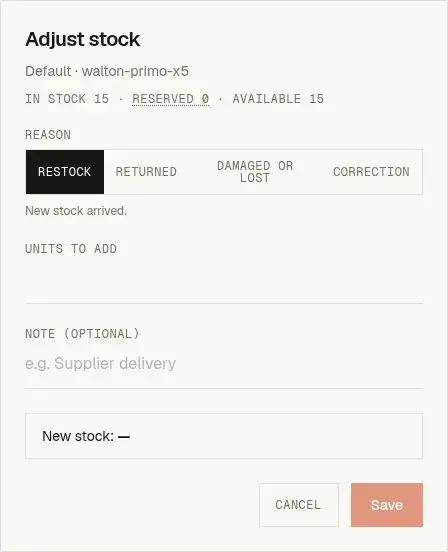
Pick a Reason: Restock (new stock arrived), Returned (a customer sent items back), Damaged or lost, or Correction (a count was wrong, add or remove).
Type the number of units and an optional note, like "Supplier delivery". Check New stock, then select Save.
See the log
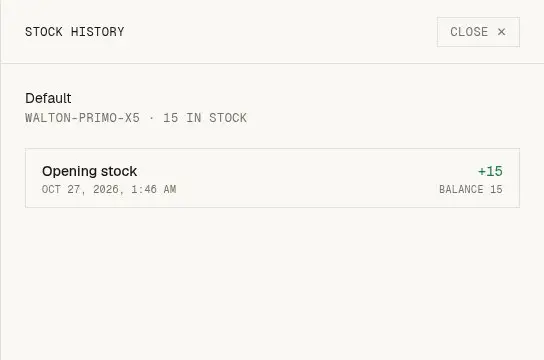
Select History next to a variant to see every change: the reason, the amount, the balance after it, who made it and when.
In stock, reserved, available
| Number | Means |
|---|---|
| In stock | What you have on the shelf |
| Reserved | Held by confirmed orders that aren't delivered yet |
| Available | In stock minus reserved: what can still be sold |
Tip: You can also adjust stock from a product's Variants tab: select Stock next to the variant.